How to Make a Fake Facebook Post: Free Tools for Realistic Mockups
TL;DR
Learn how to create realistic fake Facebook posts, comments, profiles, pages, and status updates for design mockups, UX testing, memes, roleplay, and training. Use NeoSpark's free AI mockup generators safely and legally.
How to Make a Fake Facebook Post: Free Tools for Realistic Mockups
TL;DR
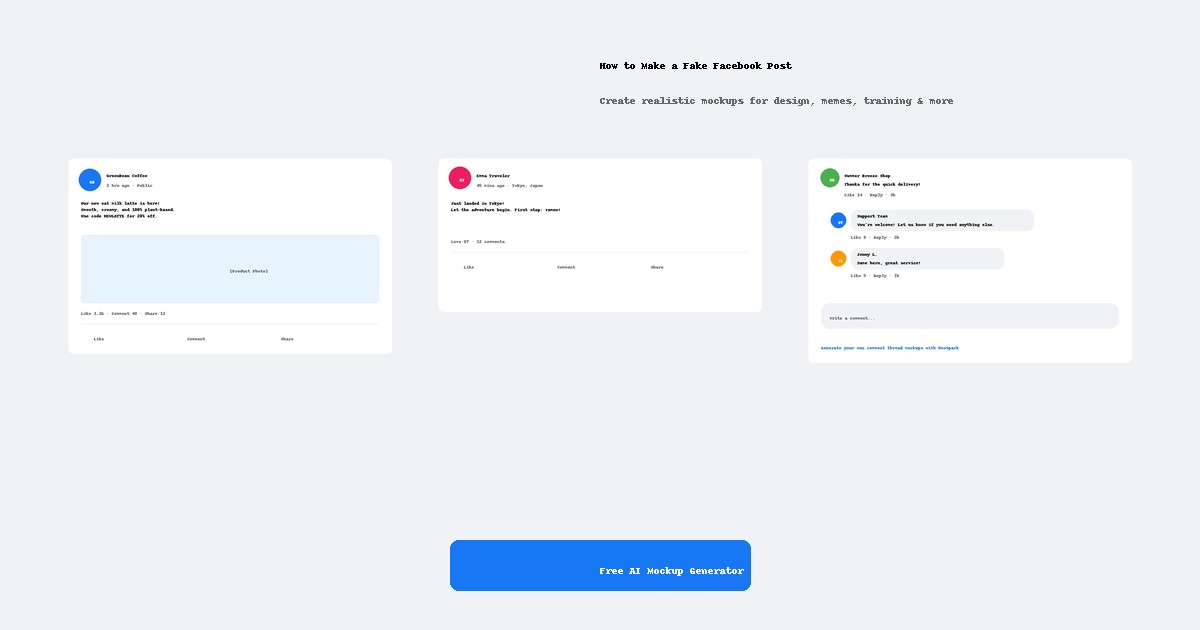
Want to know how to make a fake Facebook post? The fastest way is to use an AI mockup generator that understands Facebook’s layout. Just describe the username, post text, likes, comments, and timestamp, and the tool renders a realistic screenshot. NeoSpark offers free fake Facebook post, comment, profile, page, and status generators for legitimate uses like design mockups, UX testing, memes, roleplay, and training.
Why Create Fake Facebook Posts?
Before we dive into the tools, let’s clarify the legitimate use cases. A “fake” Facebook post is simply a fictional screenshot that looks like the real platform. Common reasons people create them include:
- UI/UX design presentations — show clients how content appears inside Facebook’s interface
- App and website testing — generate sample screenshots for QA, onboarding flows, and help docs
- Memes and parody content — create funny fictional posts for entertainment
- Roleplay and storytelling — build social media scenes for games, videos, or creative writing
- Training materials — teach social media management, customer support, or digital literacy with realistic examples
- Pitch decks — demonstrate marketing concepts with believable mockups
Important: Always use fake Facebook posts responsibly. Never use them to impersonate real people, commit fraud, spread misinformation, or deceive the public.
Option 1: NeoSpark Fake Facebook Post Generator (Fastest)
The easiest way to make a fake Facebook post is with NeoSpark’s dedicated generator.
Try it: Fake Facebook Post Generator
How it works
- Describe the post — enter the username, profile picture description, post text, likes, comments, shares, and timestamp.
- Choose a format — feed post (1200×630), square (1200×1200), or story (1080×1920).
- Select a style — mobile UI, desktop UI, meme style, or minimal mockup.
- Generate and download — the AI creates a realistic screenshot you can save and share.
Example prompt
Generate a realistic fake Facebook feed post screenshot.
Username: 'GreenEarth Store'.
Profile picture: a green leaf logo.
Post text: 'Our reusable bottles are back in stock! Free shipping this weekend.'
Posted 3 hours ago. 2.4K likes, 87 comments, 34 shares.
Include a product photo of colorful reusable bottles.
Mobile Facebook UI, white background, realistic icons and spacing.
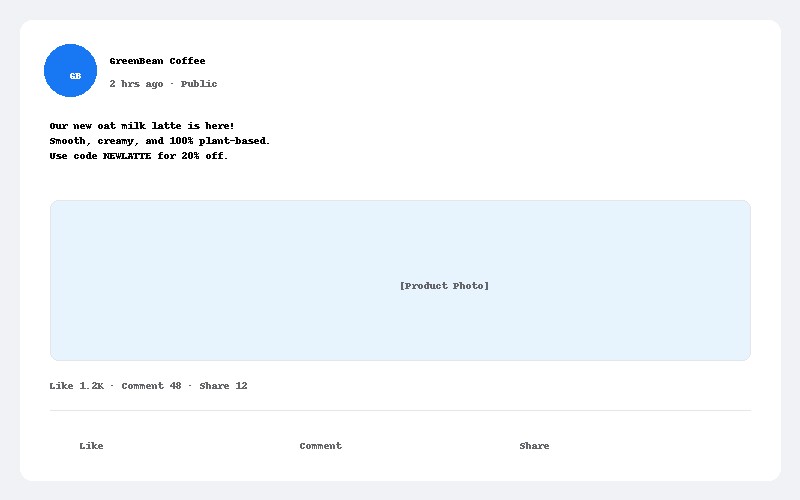 Example of a fake Facebook post mockup generated with NeoSpark.
Option 2: Make a Fake Facebook Comment Thread
If you need a comment section mockup instead of a standalone post, use the comment generator.
Try it: Fake Facebook Comment Generator
This is useful for:
- Customer support training scenarios
- Viral reply memes
- UX testing for comment threads
- Presentation mockups showing engagement
Example prompt
Generate a realistic fake Facebook comment thread screenshot.
Main comment by 'Happy Customer': 'Best customer service ever, thank you!'
24 likes, 3 replies.
Reply 1 by 'Support Team': 'You're welcome! Let us know if you need anything else.' 12 likes.
Reply 2 by 'Another User': 'Agreed, they helped me too.' 5 likes.
Mobile Facebook UI, realistic layout.
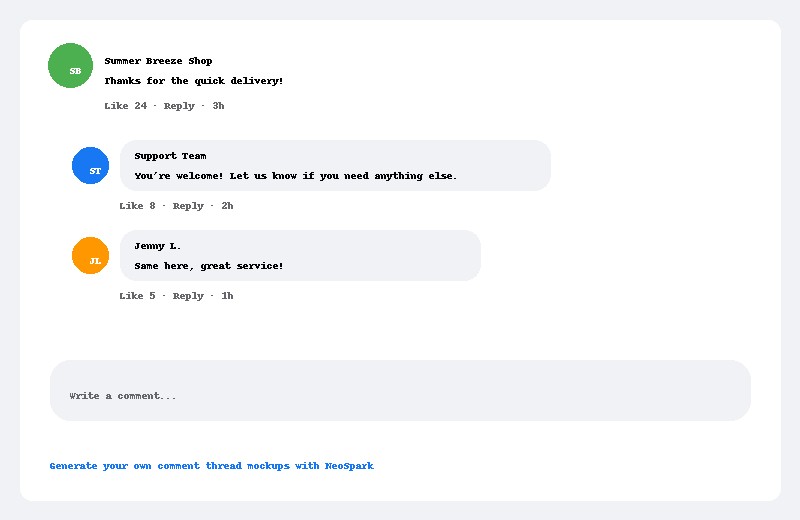 Example of a fake Facebook comment thread mockup for customer support training.
Option 3: Create a Fake Facebook Profile
For character development, roleplay, or brand personas, a fake profile page is more useful than a single post.
Try it: Fake Facebook Profile Generator
You can customize:
- Name and profile picture
- Cover photo
- Bio and personal details
- Friend count
- Recent photos grid
- Mobile or desktop layout
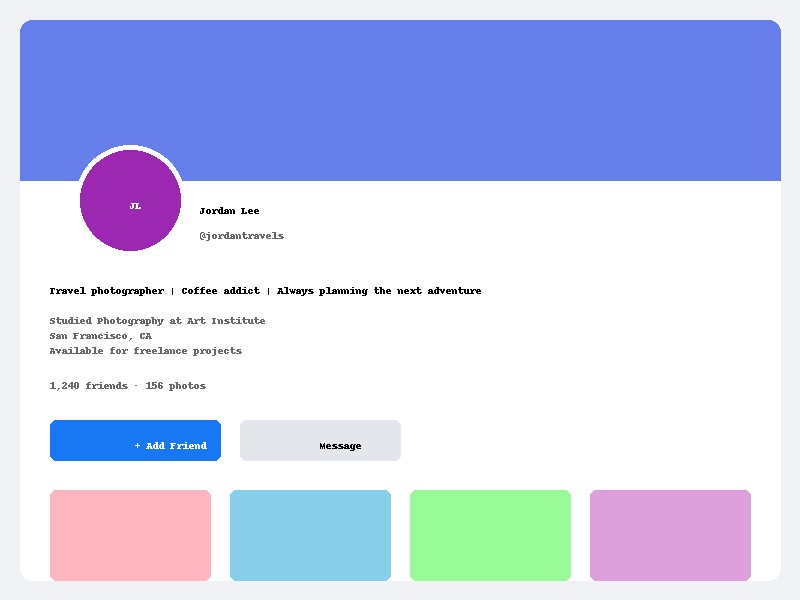 Example of a fake Facebook profile page mockup for a fictional travel photographer.
Option 4: Build a Fake Facebook Business Page
Pitching a social media campaign? A fake Facebook business page mockup helps stakeholders visualize the final result.
Try it: Fake Facebook Page Generator
Customize the page name, category, follower count, rating, reviews, recent posts, and cover image. This is ideal for:
- Marketing agencies presenting concepts
- Startup pitch decks
- Brand identity projects
- Local business marketing examples
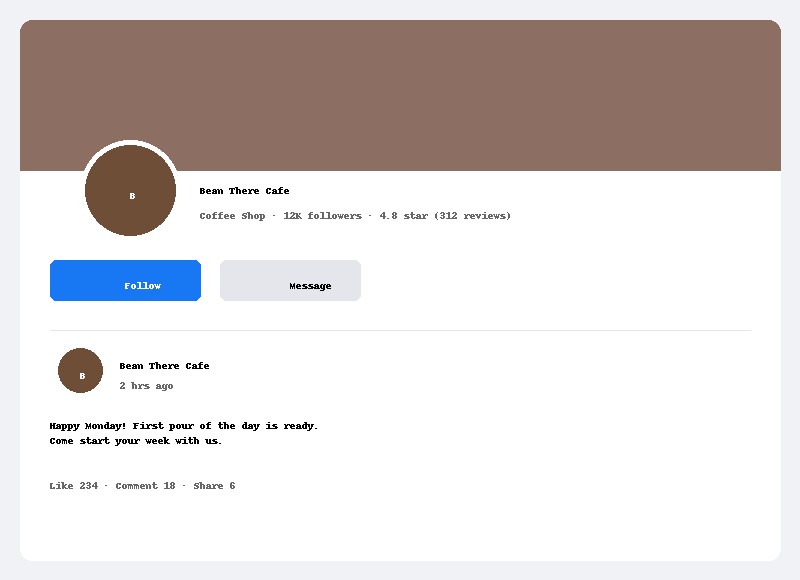 Example of a fake Facebook business page mockup for a fictional coffee shop.
Option 5: Generate a Fake Facebook Status Update
Status updates are simpler than full posts and work well for quick mockups or memes.
Try it: Fake Facebook Status Generator
Describe the username, status text, reaction count, and timestamp. Great for:
- Travel updates
- Milestone announcements
- Funny one-liners
- Mobile UI testing
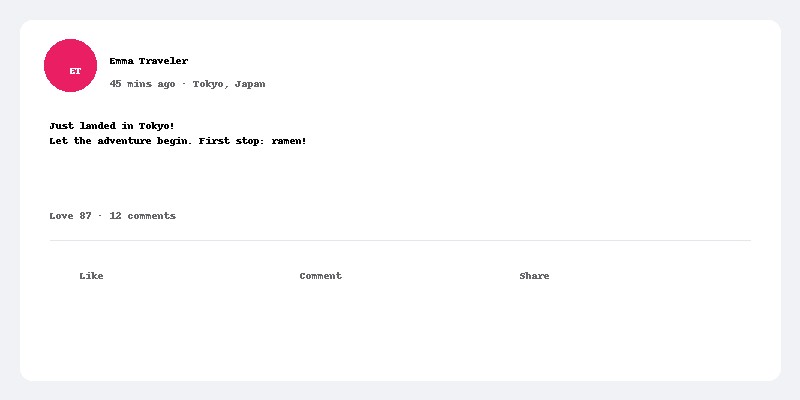 Example of a fake Facebook status update mockup for a travel update.
Step-by-Step: How to Make a Fake Facebook Post
Follow these steps to get the best results from any fake Facebook post generator.
Step 1: Define the purpose
Decide whether the mockup is for a presentation, meme, training scenario, or UI test. The purpose determines the tone, content, and level of detail.
Step 2: Choose the right tool
| What you need | Tool |
|---|---|
| Single post screenshot | Fake Facebook Post Generator |
| Comment thread | Fake Facebook Comment Generator |
| Personal profile page | Fake Facebook Profile Generator |
| Business or brand page | Fake Facebook Page Generator |
| Short status update | Fake Facebook Status Generator |
Step 3: Write a detailed prompt
The more details you include, the more realistic the result. Useful details include:
- Username and display name
- Profile picture description
- Post or comment text
- Number of likes, comments, shares, or reactions
- Timestamp (e.g., “2 hours ago”, “Yesterday at 4:30 PM”)
- Location or tag
- Mobile or desktop layout
- Image description (if the post includes a photo)
Step 4: Pick the right size
- Feed post: 1200×630 pixels — standard Facebook link/image post
- Square post: 1200×1200 pixels — ideal for image-focused posts
- Story: 1080×1920 pixels — vertical mobile story format
- Comment thread: 1200×800 pixels — wide comment section
- Profile/page: 1200×1600 pixels — full page screenshot
Step 5: Generate, review, and download
Generate the mockup, check that the layout and details look correct, and download the image. If something is off, edit your prompt and try again.
Tips for Realistic Fake Facebook Mockups
- Use fictional usernames — avoid real people’s names to prevent impersonation issues.
- Keep engagement numbers believable — a brand-new account with a million likes looks suspicious.
- Match Facebook’s visual style — use mobile UI presets for phone screenshots and desktop UI presets for browser mockups.
- Include timestamps and reactions — small details make mockups look authentic.
- Add a disclaimer when sharing publicly — label parody or fictional content clearly.
Safety and Legal Guidelines
Creating fake Facebook posts is legal for most personal, educational, and creative purposes. However, you should never:
- Impersonate a real person or organization
- Create content that defames, harasses, or threatens someone
- Use mockups to commit fraud or scams
- Spread false information while pretending it is real
- Violate Facebook’s terms of service or local laws
When in doubt, add a visible disclaimer such as “Fictional mockup for demonstration purposes only.”
Alternatives to AI Generators
If you prefer manual control, you can also create fake Facebook posts with:
- Graphic design tools like Figma, Canva, or Photoshop using Facebook UI kits
- Browser developer tools by editing the text on a real Facebook page screenshot
- Dedicated mockup apps that offer social media templates
However, AI generators are much faster and produce more realistic results, especially if you need multiple variations.
Frequently Asked Questions
Is it free to make a fake Facebook post?
Yes. NeoSpark’s fake Facebook generators offer free generations without requiring signup. Additional generations are available through NeoSpark credits.
Can I use fake Facebook posts commercially?
For legitimate design, testing, educational, or parody purposes, yes. Always ensure you are not impersonating real people or misleading audiences.
How realistic are AI-generated Facebook mockups?
The AI follows Facebook’s familiar layout, typography, colors, and spacing. Results are intended to look authentic for mockup and presentation use.
Can I customize usernames, photos, and engagement numbers?
Yes. Include any details in your prompt, such as username, avatar description, like count, comment count, shares, timestamp, and location.
What is the best size for a fake Facebook post?
For feed posts, use 1200×630 pixels. For square image posts, use 1200×1200 pixels. For stories, use 1080×1920 pixels.
Get Started
Ready to create your first fake Facebook post? Pick the tool that matches your needs:
- Fake Facebook Post Generator
- Fake Facebook Comment Generator
- Fake Facebook Profile Generator
- Fake Facebook Page Generator
- Fake Facebook Status Generator
Use them responsibly, and you’ll have realistic social media mockups in seconds.