Text-to-Image Models Without Limitations: Grok Image Editor, Image Uploads, and Best Free Image-to-Video Tools in 2026
Alex Zhang is the founder of NeoSpark, an AI-powered design platform helping creators and teams generate images, videos, and brand assets without design skills.
Text-to-Image Models Without Limitations: Grok Image Editor, Image Uploads, and Best Free Image-to-Video Tools in 2026
Want fewer restrictions, better image editing, and free image-to-video conversion? This guide covers text-to-image models without limitations, how to use Grok AI image upload, the Grok image editor, and the best free AI image-to-video tools in 2026.
Published: July 5, 2026 | Updated: July 5, 2026 Reading Time: 15 minutes Tools Covered: 12+
TL;DR
| Need | Best Option | Why |
|---|---|---|
| Text-to-image with fewer limits | Stable Diffusion / Flux / uncensored checkpoints | Open weights, community models, local control |
| Easy image editing with AI | Grok Image Editor (via X/Grok) | Conversational edits, fast, integrated with X |
| Upload and edit images with AI | Grok AI image upload feature | Drag-and-drop or tap upload, then prompt edits |
| Free image-to-video | Pika Labs, Luma Dream Machine, Haiper AI | Generous free tiers, no watermark |
| All-in-one workflow | NeoSpark | Image generation + editing + video in one platform |
Bottom line: If you want text-to-image models without limitations, open-source models offer the most freedom. For conversational editing and social content, Grok image editor is convenient. To animate your images for free, the best free AI image-to-video tools 2026 include Pika Labs, Luma, and Haiper.
Text to Image Models Without Limitations
Defining “Without Limitations”
When users search for text to image models without limitations, they usually mean models with:
- Broader content policies than mainstream tools
- Local or self-hosted deployment for privacy and control
- Fine-tuning ability for specific styles or subjects
- No arbitrary refusals for artistic, editorial, or mature content
⚠️ Important: “Without limitations” does not mean “without any rules.” Legal restrictions, copyright laws, and platform policies still apply.
Why Mainstream Tools Feel Limited
Mainstream platforms like DALL-E 3, Midjourney, and Adobe Firefly have content policies that refuse prompts involving:
- Real persons without consent
- Graphic violence or illegal acts
- Hate speech or harassment
- Certain adult or medical themes
- Trademarked brands in commercial contexts
These protections make sense for public platforms, but creators working on editorial art, mature content, or private projects often search for text to image models without limitations to get more flexibility.
Text-to-Image Models With Fewer Restrictions
| Model | Type | Limitation Level | Best For |
|---|---|---|---|
| Stable Diffusion XL | Open-source | Low | Local generation, custom models |
| Flux (Black Forest Labs) | Open-source / API | Low | High quality, flexible licensing |
| SDXL Uncensored Checkpoints | Community | Very low | Mature/educational content |
| Grok Imagine | Closed (xAI) | Moderate | Social content, photorealism |
| Leonardo.AI | Freemium | Moderate | Game assets, fantasy art |
| Mage.space | Freemium | Low | Adult content allowed |
How to Run Truly Unrestricted Models
For maximum control, run models locally:
- Install Stable Diffusion WebUI (Automatic1111) or ComfyUI
- Download a base model like SDXL or Flux
- Add community checkpoints for specific styles or reduced moderation
- Generate offline with no platform oversight
Trade-off: You gain freedom, but you also take full responsibility for outputs and compliance.
Grok Image Editor: What It Can Do

Overview
Grok image editor is xAI’s conversational image editing feature, integrated into the Grok AI assistant. Instead of learning complex editing software, you describe what you want changed, and Grok applies the edit.
Key Features
| Feature | Description |
|---|---|
| Conversational edits | ”Make the background a sunset” or “Change the car color to red” |
| Image uploads | Upload existing images for editing or analysis |
| Style transfer | Apply artistic styles to photos |
| Object replacement | Swap objects with text prompts |
| Quick generation | Typically produces results in seconds |
| X integration | Easy sharing to Twitter/X timelines |
Grok Imagine vs. Grok Image Editor
| Capability | Grok Imagine | Grok Image Editor |
|---|---|---|
| Primary use | Generate new images | Edit existing images |
| Input | Text prompts | Text + uploaded image |
| Output | New images | Modified images |
| Best for | Creating from scratch | Iterating on existing visuals |
Grok AI Image Upload Feature How to Use
Step-by-Step Guide
If you’re wondering grok ai image upload feature how to use, here’s the current workflow as of July 2026.
Step 1: Open Grok
- Mobile: Open the X (Twitter) app and tap the Grok icon
- Web: Go to grok.com or use Grok inside X on desktop
Step 2: Start a New Chat
Create a fresh conversation so Grok focuses on your image task.
Step 3: Upload Your Image
- Look for the paperclip or image icon near the message input
- Tap or click it
- Select an image from your device
- Supported formats usually include JPG, PNG, and WEBP
Step 4: Write Your Prompt
After uploading, describe what you want. Examples:
"Change the background to a tropical beach"
"Turn this photo into a 1980s synthwave album cover"
"Remove the watermark and clean up the edges"
"Make this character look like a Pixar animation"
Step 5: Review and Iterate
Grok will generate an edited version. If it’s not perfect, reply with refinements:
"Make the sunset more orange"
"The face looks distorted—fix it"
"Add more contrast"
Pro Tips for Grok Image Uploads
- Use high-resolution source images for better edits
- Be specific about what to change and what to keep
- Upload reference images for style matching when available
- Break complex edits into steps rather than asking for everything at once
- Check terms of service before editing copyrighted or sensitive images
Common Issues and Fixes
| Problem | Likely Cause | Fix |
|---|---|---|
| Upload fails | File too large | Resize image under 10MB |
| Edit ignores part of prompt | Prompt too vague | Specify exact changes |
| Output quality low | Low-res source | Upload higher resolution |
| Content refused | Policy filter | Rephrase or use a different tool |
Best Free AI Image to Video Tools 2026
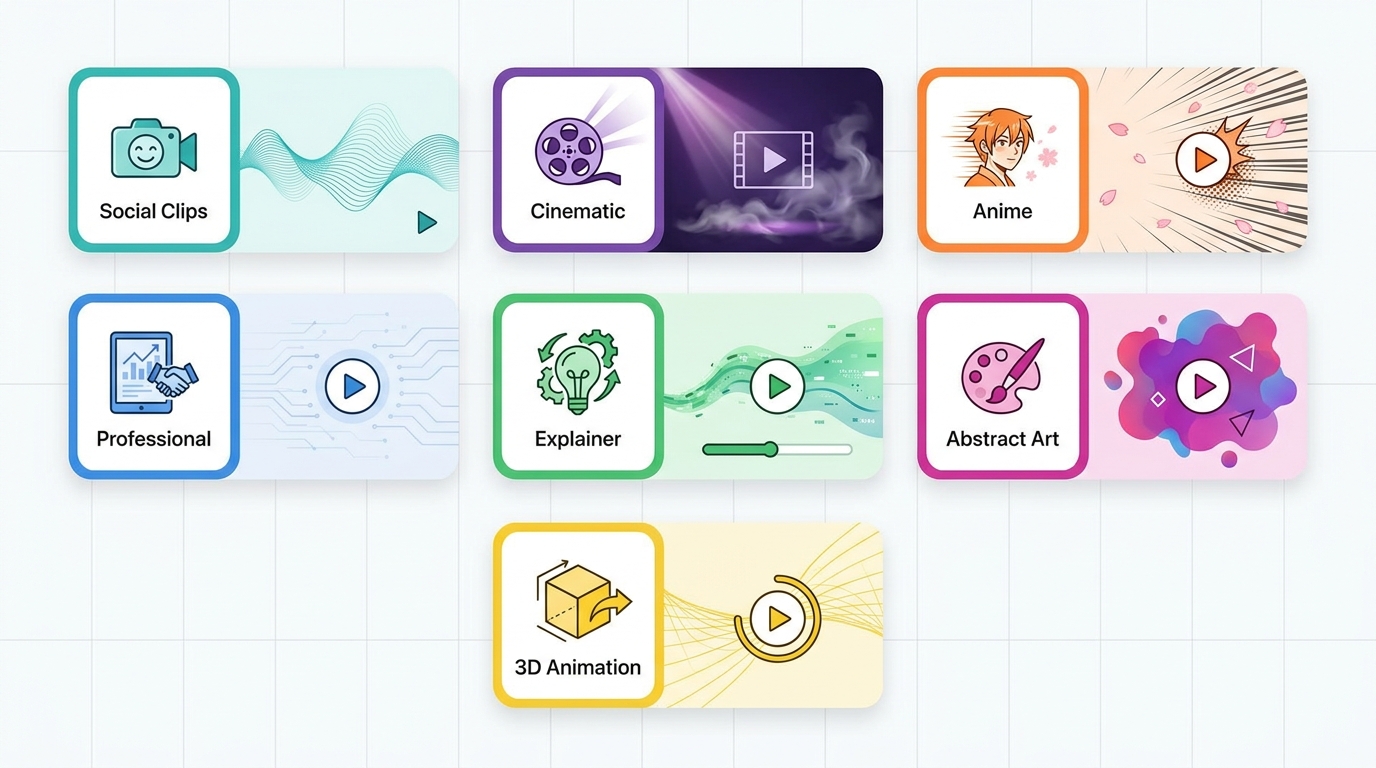
Turning a static image into a moving video is one of the most exciting AI capabilities in 2026. Here are the best free ai image to video tools 2026 for creators on a budget.
1. Pika Labs 2.0 — Best for Social Media Clips
Rating: ⭐⭐⭐⭐⭐ (4.8/5)
Pika Labs makes it incredibly easy to animate images into short, shareable videos.
Free Tier:
- 10 videos per day
- Up to 3 seconds per video
- 720p resolution
- No watermark
Best For: TikTok, Instagram Reels, quick social content
2. Luma Dream Machine — Best Cinematic Quality
Rating: ⭐⭐⭐⭐⭐ (4.7/5)
Luma produces the most cinematic image-to-video results among free tools, with natural motion and camera understanding.
Free Tier:
- 30 generations per month
- Up to 5 seconds per video
- 1080p resolution
- No watermark
Best For: Filmmakers, product videos, B-roll
3. Kling AI — Best for Longer Videos
Rating: ⭐⭐⭐⭐⭐ (4.6/5)
Kling AI stands out for longer video duration and strong physics understanding.
Free Tier:
- 3 videos per day
- Up to 10 seconds per video
- 720p resolution
- No watermark
Best For: Storytelling, narrative content
4. Haiper AI — Best for Unlimited Beginners
Rating: ⭐⭐⭐⭐ (4.4/5)
Haiper offers unlimited free generations, making it ideal for learning and experimentation.
Free Tier:
- Unlimited generations
- Up to 2 seconds per video
- 720p resolution
- No watermark
Best For: Beginners, prompt testing
5. Runway Gen-3 — Best Professional Features
Rating: ⭐⭐⭐⭐ (4.5/5)
Runway is the industry standard, with advanced motion controls and professional features.
Free Tier:
- 125 one-time credits
- Up to 10 seconds per video
- 1080p resolution
- No watermark
Best For: Professional projects, music videos
6. Leonardo.AI Motion — Best for Image-First Creators
Rating: ⭐⭐⭐⭐ (4.2/5)
Leonardo’s Motion feature animates any image generated or uploaded to its platform.
Free Tier:
- 150 tokens per day
- ~15 motion videos per day
- 720p resolution
- No watermark
Best For: Image-first creators, concept art animation
7. PixVerse V4 — Best for Anime and Stylized Content
Rating: ⭐⭐⭐⭐ (4.3/5)
PixVerse excels at stylized and anime-style image-to-video animation.
Free Tier:
- 100 credits per day
- Up to 4 seconds per video
- 720p resolution
- No watermark
Best For: Anime creators, game developers
Comparison Table: Best Free AI Image-to-Video Tools 2026
| Tool | Free Videos | Duration | Resolution | Watermark | Best For |
|---|---|---|---|---|---|
| Pika Labs 2.0 | 10/day | 3s | 720p | ❌ | Social clips |
| Luma Dream Machine | 30/mo | 5s | 1080p | ❌ | Cinematic |
| Kling AI | 3/day | 10s | 720p | ❌ | Long videos |
| Haiper AI | Unlimited | 2s | 720p | ❌ | Beginners |
| Runway Gen-3 | 125 total | 10s | 1080p | ❌ | Professional |
| Leonardo Motion | ~15/day | 2-4s | 720p | ❌ | Image animation |
| PixVerse V4 | 100/day | 4s | 720p | ❌ | Anime/stylized |
How to Build a Complete Workflow
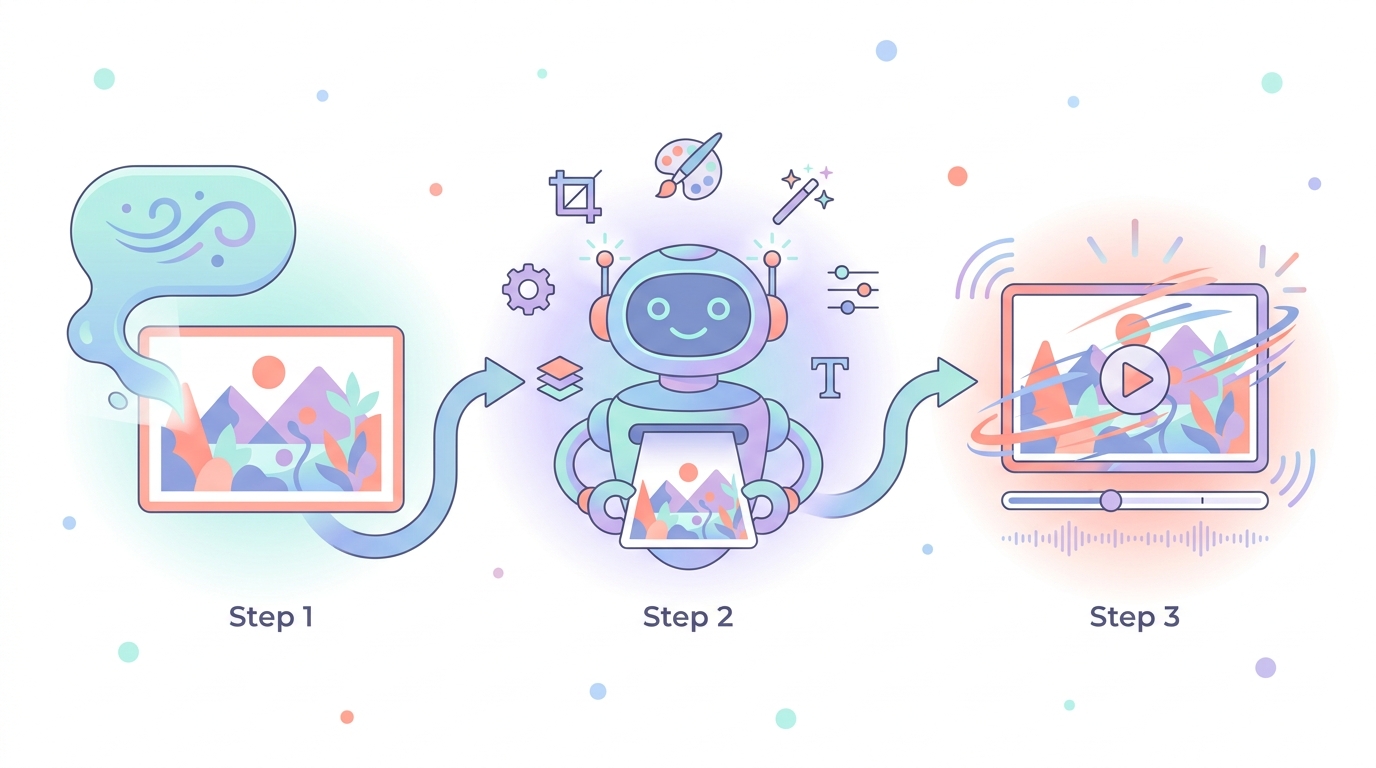
From Text to Image to Video
You can combine text to image models without limitations, Grok image editor, and free image-to-video tools into a powerful creative pipeline:
Step 1: Generate the Base Image
Use a text-to-image model that fits your needs:
- Mainstream quality: DALL-E 3, Midjourney
- Fewer restrictions: Stable Diffusion / Flux locally
- Social photorealism: Grok Imagine
Step 2: Edit and Refine
Upload your image to Grok image editor or another AI editor:
- Fix composition
- Change backgrounds
- Apply style transfers
- Remove unwanted objects
Step 3: Animate with Image-to-Video
Take the final image into a free image-to-video tool:
- Cinematic: Luma Dream Machine
- Social: Pika Labs
- Longer motion: Kling AI
- Unlimited testing: Haiper AI
Example Workflow
Text prompt → Flux/Stable Diffusion → Grok image editor → Luma Dream Machine
Result: A fully AI-generated video starting from just a text description.
Limitations and Responsible Use
Understanding “Without Limitations”
Even the most permissive models have boundaries:
- Legal limits: Child safety, non-consensual imagery, fraud
- Ethical limits: Synthetic media, misinformation, harassment
- Platform limits: Where you publish may have stricter rules than the model
Best Practices
- Use unrestricted models responsibly—freedom comes with accountability
- Verify commercial rights for every tool in your workflow
- Label AI-generated content when required by platform policies
- Respect individuals’ likenesses and consent
FAQ
Q: What are text-to-image models without limitations?
A: These are AI image models—often open-source like Stable Diffusion and Flux—that allow broader creative freedom than heavily moderated platforms. They still operate under legal and ethical boundaries, but give users more control over content and style.
Q: How do I use Grok AI image upload feature?
A: Open Grok in the X app or at grok.com, start a chat, tap the image/upload icon, select your image, and type instructions for what you want edited. Grok will process the image and return an edited version.
Q: Is Grok image editor free?
A: Grok image editor is available through X Premium subscriptions and Grok credit packs. Limited free access may be offered periodically, but consistent use typically requires payment. Check xAI’s current terms for the latest pricing.
Q: What are the best free AI image-to-video tools 2026?
A: The best options are Pika Labs 2.0 (social clips), Luma Dream Machine (cinematic quality), Kling AI (longer videos), Haiper AI (unlimited beginners), Runway Gen-3 (professional features), Leonardo Motion (image-first workflows), and PixVerse V4 (anime/stylized content).
Q: Can I use Grok-generated images commercially?
A: Commercial rights for Grok image editor and Grok Imagine outputs depend on your subscription tier and region. Always verify xAI’s current terms before using outputs for business purposes.
Q: What’s the difference between Grok Imagine and Grok Image Editor?
A: Grok Imagine generates new images from text prompts. Grok Image Editor modifies existing images that you upload. Both are part of the Grok AI assistant ecosystem.
Q: Are free image-to-video tools watermark-free?
A: Yes—all the tools listed in this guide offer watermark-free output on their free tiers as of July 2026. However, terms can change, so verify before publishing.
Q: Which image-to-video tool is easiest for beginners?
A: Haiper AI has the simplest interface and unlimited free generations, making it the best starting point. For slightly higher quality with still-generous limits, try Pika Labs.
Q: Can I combine Grok with free image-to-video tools?
A: Yes. A common workflow is: generate or edit an image in Grok, download it, then upload it to Luma, Pika, or Haiper to create a video. For a unified workflow, platforms like NeoSpark combine multiple tools under one subscription.
Conclusion
The creative toolkit in 2026 is incredibly flexible:
- For text to image models without limitations, open-source options like Stable Diffusion and Flux give you the most control.
- For conversational image editing, the Grok image editor and Grok AI image upload feature how to use workflow offer a fast, intuitive experience—especially if you’re already in the X ecosystem.
- For animating images for free, the best free ai image to video tools 2026 include Pika Labs, Luma Dream Machine, and Haiper AI.
Start by choosing the right text-to-image model for your content policy needs, refine your image with Grok or another editor, then bring it to life with a free image-to-video tool. For teams that need everything in one place, NeoSpark offers integrated image generation, editing, and video capabilities with clear commercial licensing.
Related Articles
- Image Generation API: A Developer’s Guide
- 15 Best Free AI Image Generators in 2026
- 10 Best Free AI Video Generators in 2026
- Seedance 2.0: Multimodal AI Video Generation Guide
- Text to Image AI Free: Complete Guide
Try It Yourself: Curated Prompts
Experiment with these prompts across text-to-image, editing, and image-to-video workflows:
Text-to-Image Starters
- Prompt Technique for Beginners - Build strong foundations
- Quality Enhancement Keywords - Boost any image
- Photo-Realistic Product Shots - Commercial-ready outputs
Editing and Style
- 7-Year-Old Artist Style - Unique artistic filters
- Riso Print Style - Vintage aesthetic charm
- 3D Paper Art Style - Texture-rich results
Motion and Video
- Composition Techniques - Frame better video inputs
- Lighting Techniques - Create mood for animated scenes
- Cinematic Prompts - Movie-quality image foundations
Share This Article
Found this helpful? Share it with your network:
Share on X Share on LinkedIn Share on Facebook
This article was written by the NeoSpark Team, which consists of AI researchers, creative technologists, and digital marketing experts with a combined 25+ years of experience in creative technology and design automation.
Disclaimer: Pricing, features, and terms mentioned are accurate as of July 2026. AI platforms update policies frequently—always verify current terms directly with each provider before making business decisions.